
User guide
Get started with BHAI.
From connecting MT5 and choosing an account to trading, managing risk, and reviewing the journal.
Windows · MetaTrader 5 Free edition included
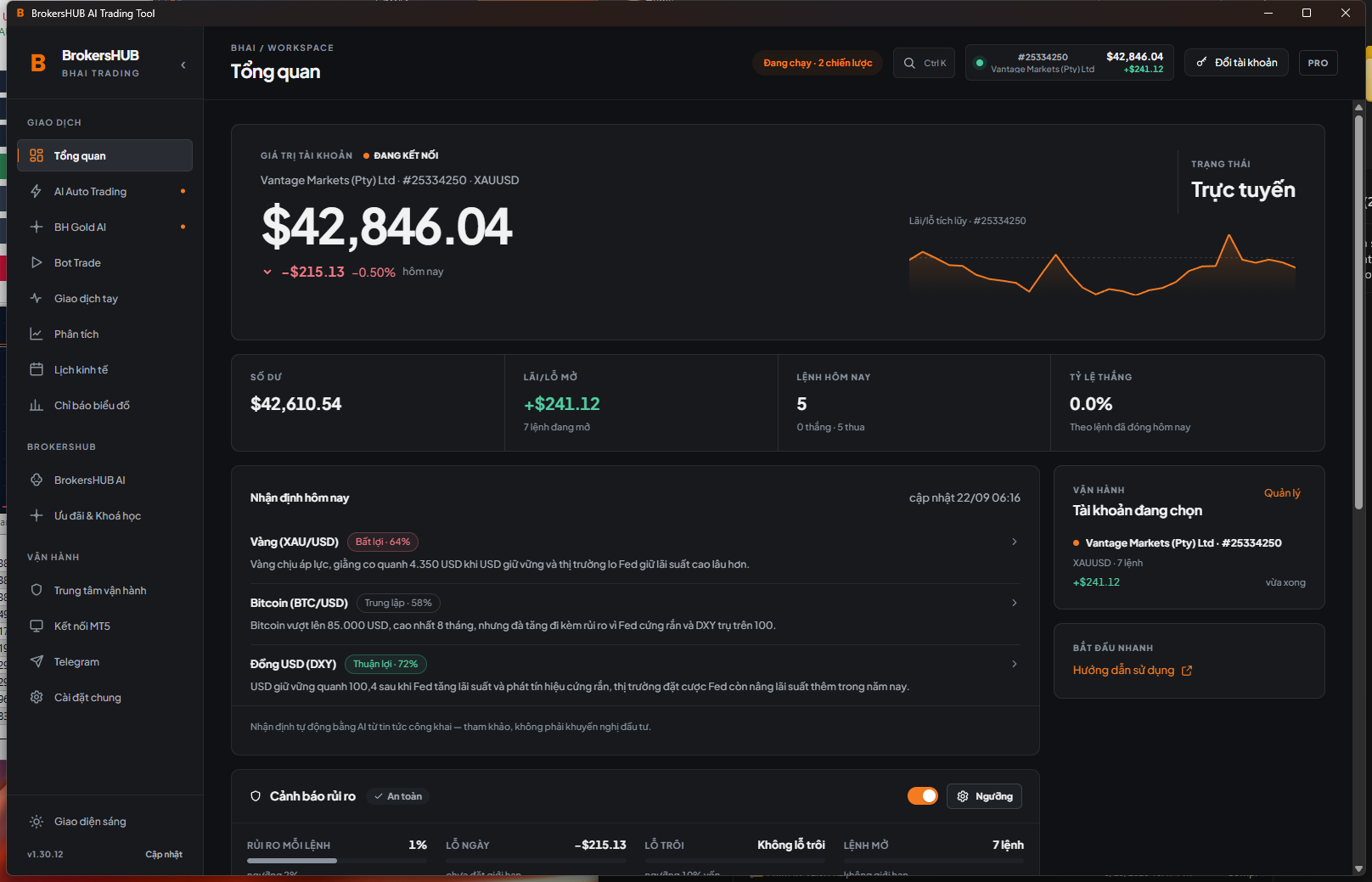
Screenshots show BHAI 1.30 on a demo account. The interface may differ by installed version.
No matching content. Try a shorter term such as MT5, key, or DCA, or clear the search.
Start with MT5
You need 64-bit Windows 10/11, your broker’s MT5 with an account signed in, and an internet connection.
- Choose Free download on this page, open the .msi installer, and install BHAI on Windows.
- In BHAI, open MT5 Setup → Add installation. Choose your broker’s MT5 installation to install AI Trading.
- In MT5, open Tools → Options → Expert Advisors and enable Allow DLL imports and algorithmic trading. Check that the Algo Trading toolbar button is also enabled.
- Choose Open MT5 with AI Trading and wait for the online status.
No WebRequest URL is needed. The launch button may close and reopen a running MT5; save your work first.
Choose the right account
You can save several profiles, but each session controls one MT5 account and one server.
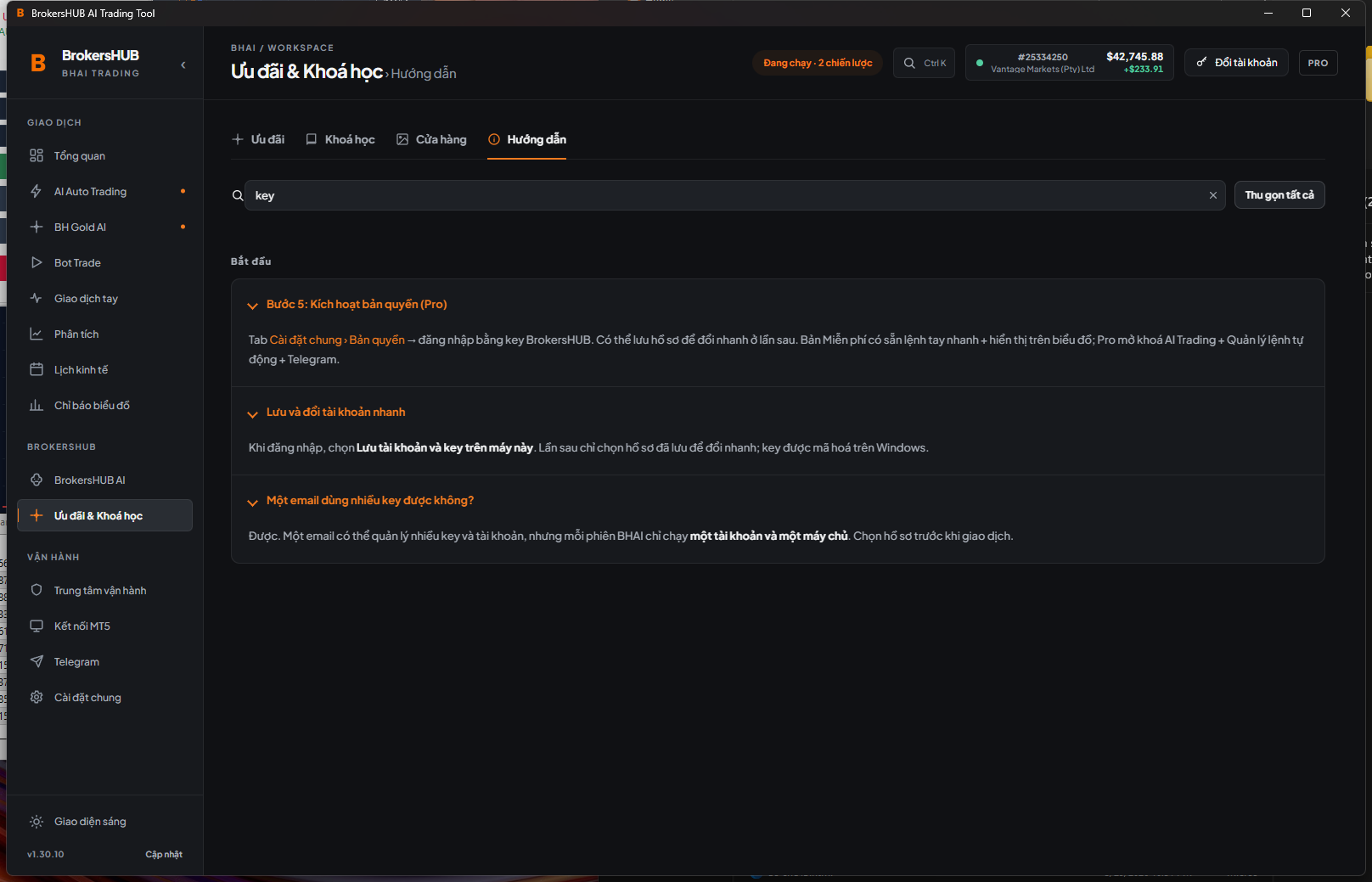
- Choose Switch account in the top bar, then add an account when needed.
- Enter your email and key, then select the correct MT5 account number and server.
- Keep Save account and key on this computer selected, then choose Continue. Next time, select the saved profile and wait for verification.
- Check the account number and server in the status bar before taking action.
One email can own several keys; each account needs its own key. Saved keys are encrypted. BHAI neither saves the MT5 password nor switches the account signed in to MT5.
Read the session status
Overview shows balance, equity, today’s P&L, open positions, risk alerts, and activity for the selected account.
- Check the account and server name before reading the figures.
- Distinguish verified data from a status waiting for MT5 or for history to load.
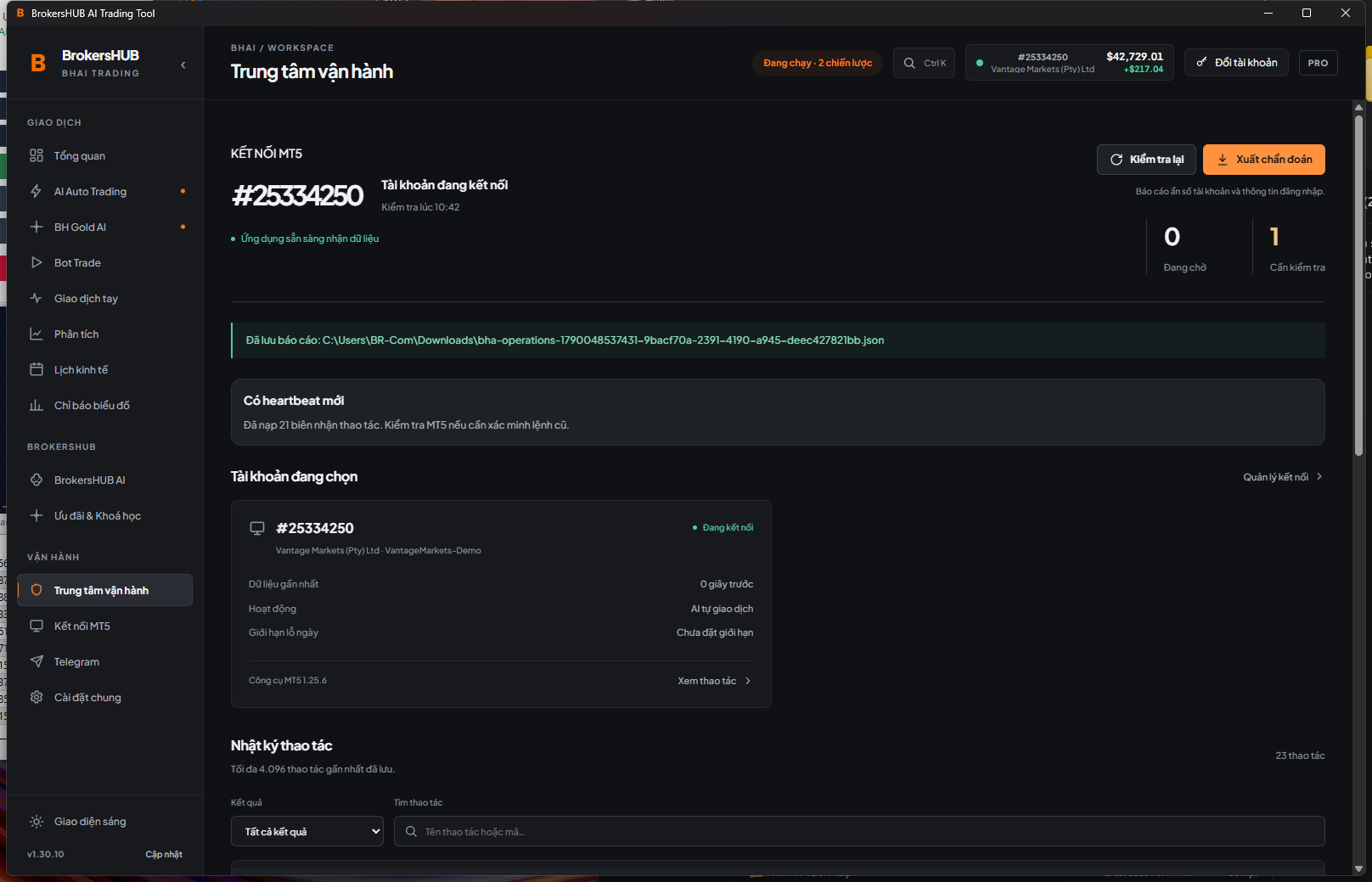
- Open Operations Center for connection status, action receipts, or an anonymous diagnostic export.
When data is unverified, do not treat an empty value or dash as zero.
Trade manually with confirmation
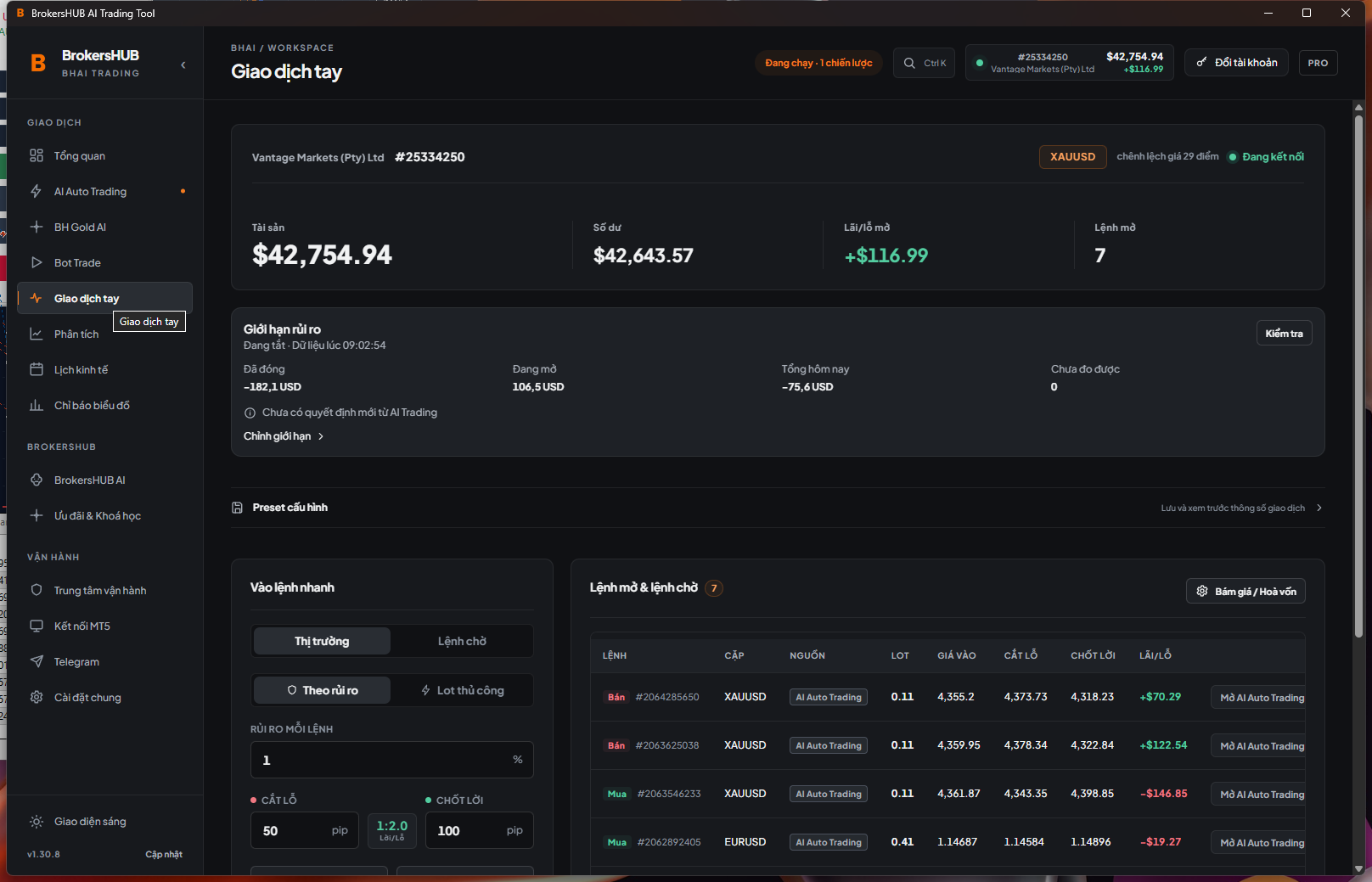
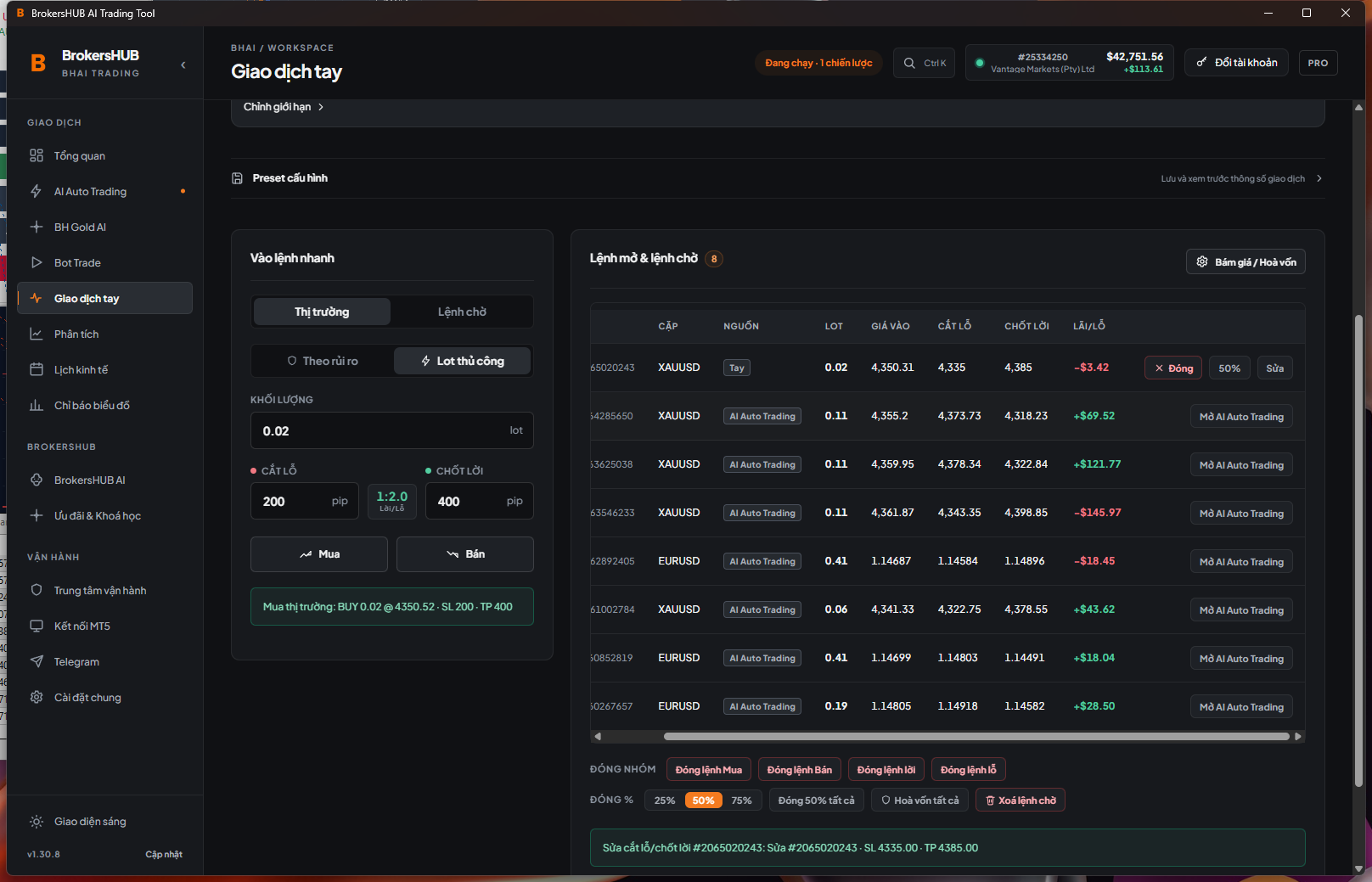
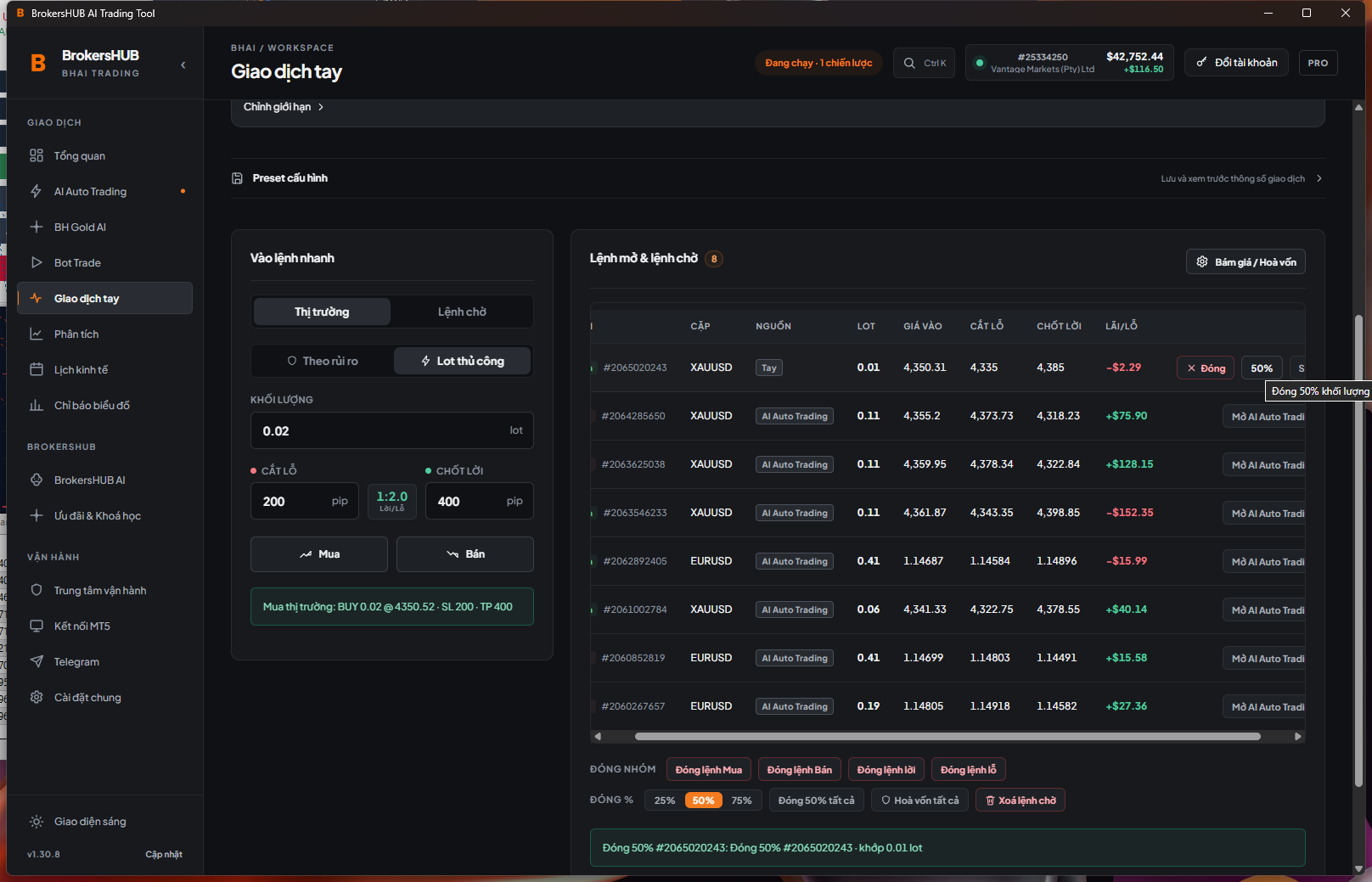
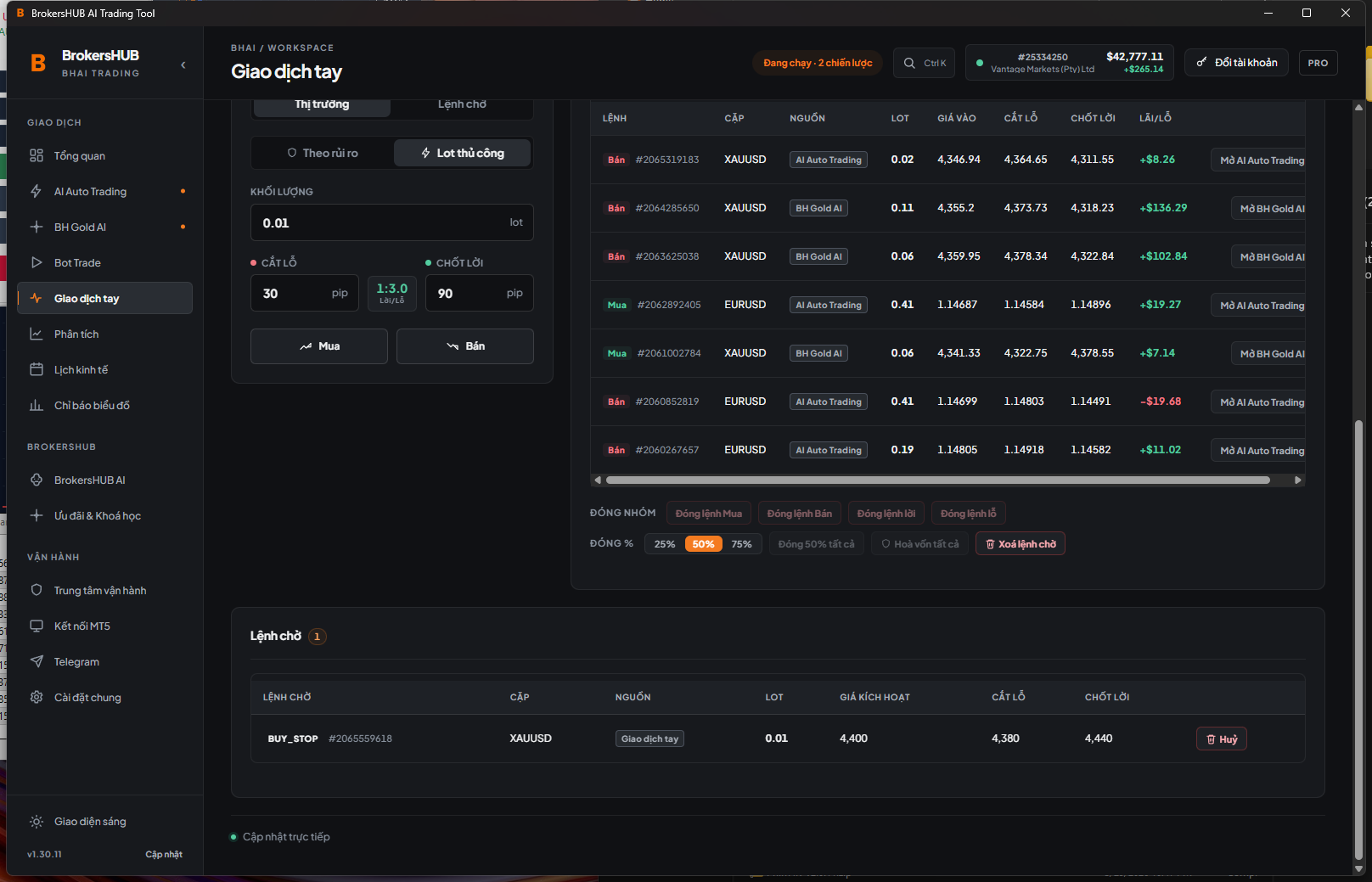
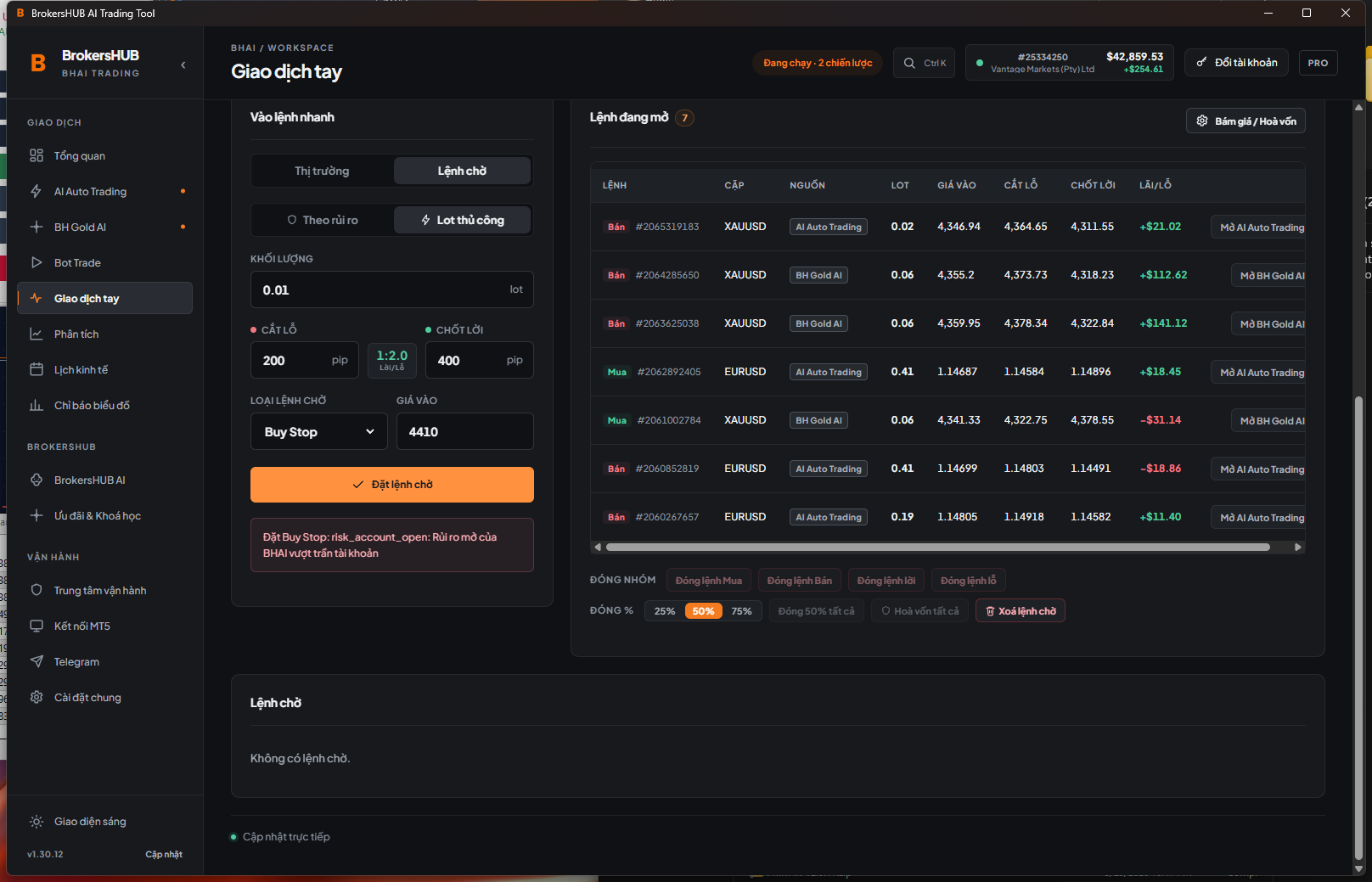
Place market or pending orders, then manage SL, TP, break-even, trailing, and partial closes in the app.
- Choose the correct chart symbol and review price, volume, SL, and TP before sending an order.
- Choose Market for an immediate Buy/Sell, or Pending to place a Limit/Stop at your chosen price.
- On each position row, use Edit SL/TP, Close, or Partial close. Trailing / Break-even is above the table. Cancel the intended ticket in the Pending orders card.
- Wait for MT5 to respond before tapping again or making another adjustment.
- If the result is unclear, check positions, pending orders, and history in MT5 first.
These controls require Pro. BHAI closes/cancels only BHAI-managed manual orders on the selected chart symbol; orders placed directly in MT5 or by other systems are left unchanged.
Monitor BH Gold AI
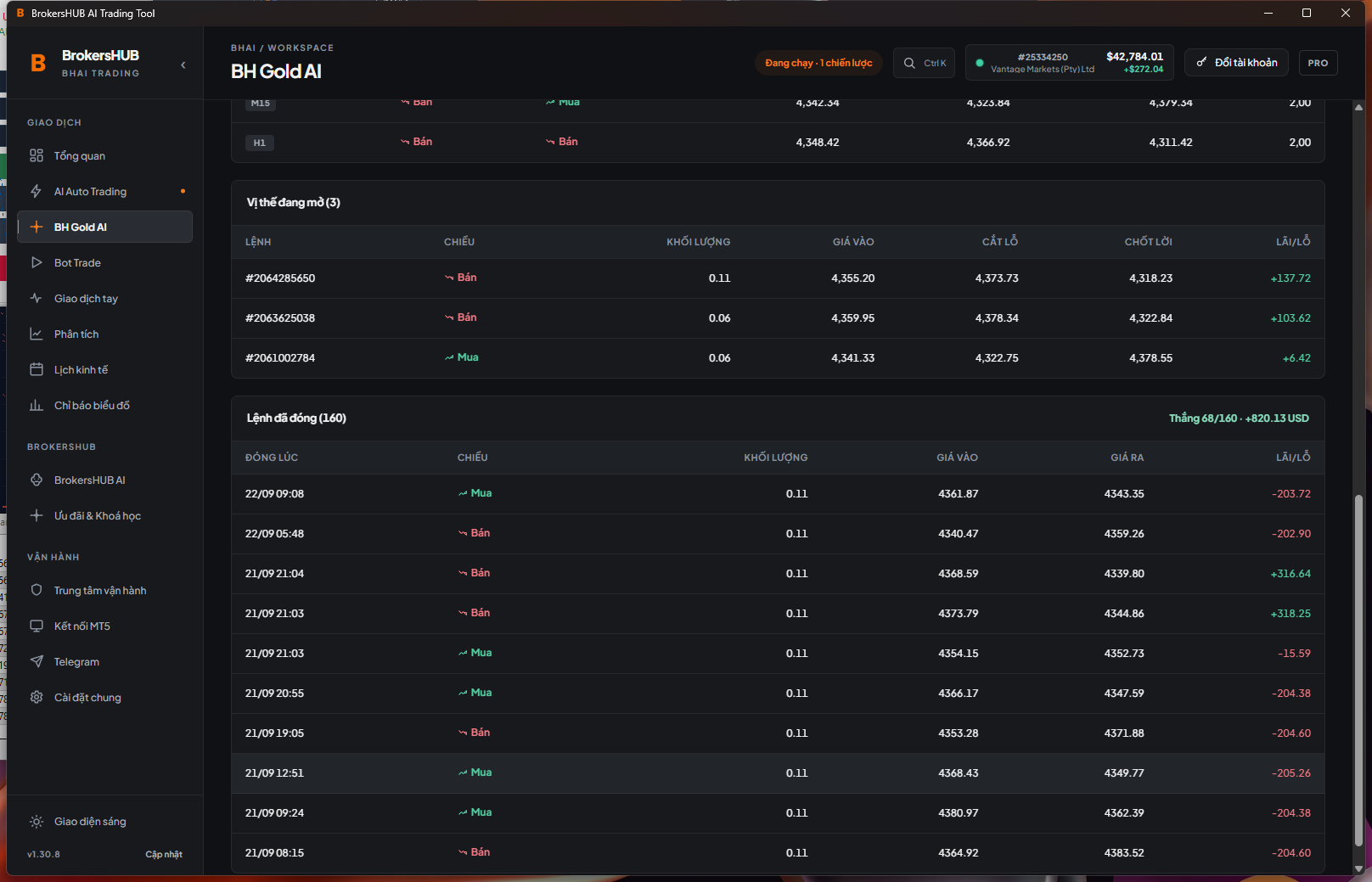
BH Gold AI has its own status and data for the selected account, including signals, positions, and Gold history.
- Open BH Gold AI and check that MT5 is connected to the broker with a supported gold symbol.
- Choose Standard or Scalping, review the settings, and enable BH Gold AI. Wait for MT5 to confirm its state.
- Monitor signals, positions, and Gold history for the selected account. Enabling it does not mean a trade will open immediately.
Turning BH Gold AI off stops new entries; existing positions remain managed. Signals do not guarantee trading results.
Configure AI Auto Trading
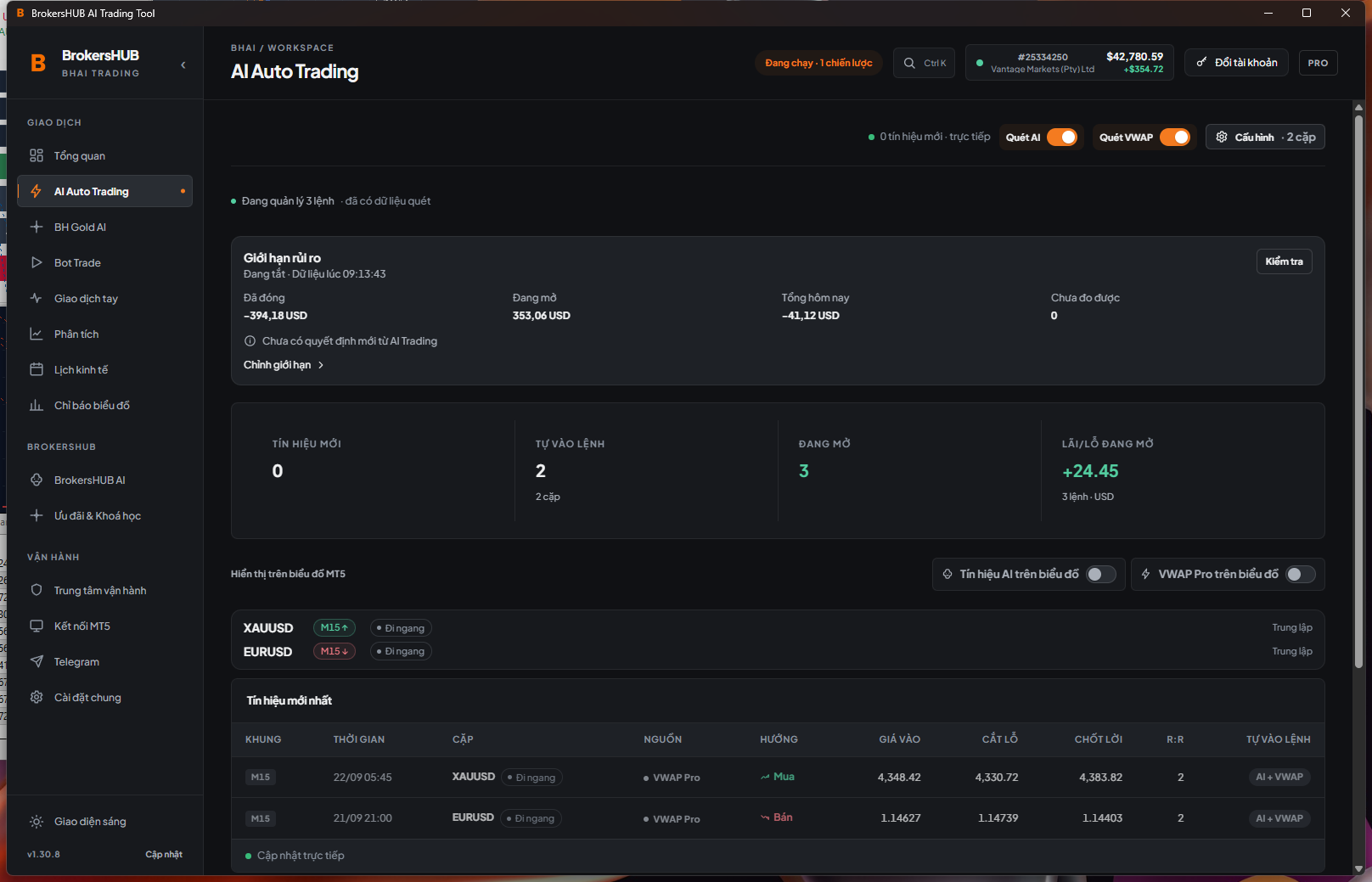
Scan signals across pairs, configure each pair, and save each step with feedback from MT5.
- Open AI Auto Trading and choose the pairs you want to monitor.
- Choose signal sources, scan timeframes, and entry behavior for your configuration.
- Review the risk per trade, then Save. If Auto-entry is enabled for a pair, the tool can open new trades after MT5 confirms the settings.
- After reconnecting, wait for BHAI to load settings from MT5. Do not save defaults before the settings have loaded.
Responses from a previous profile are ignored after you switch account or server.
Bot Trade and DCA scenarios
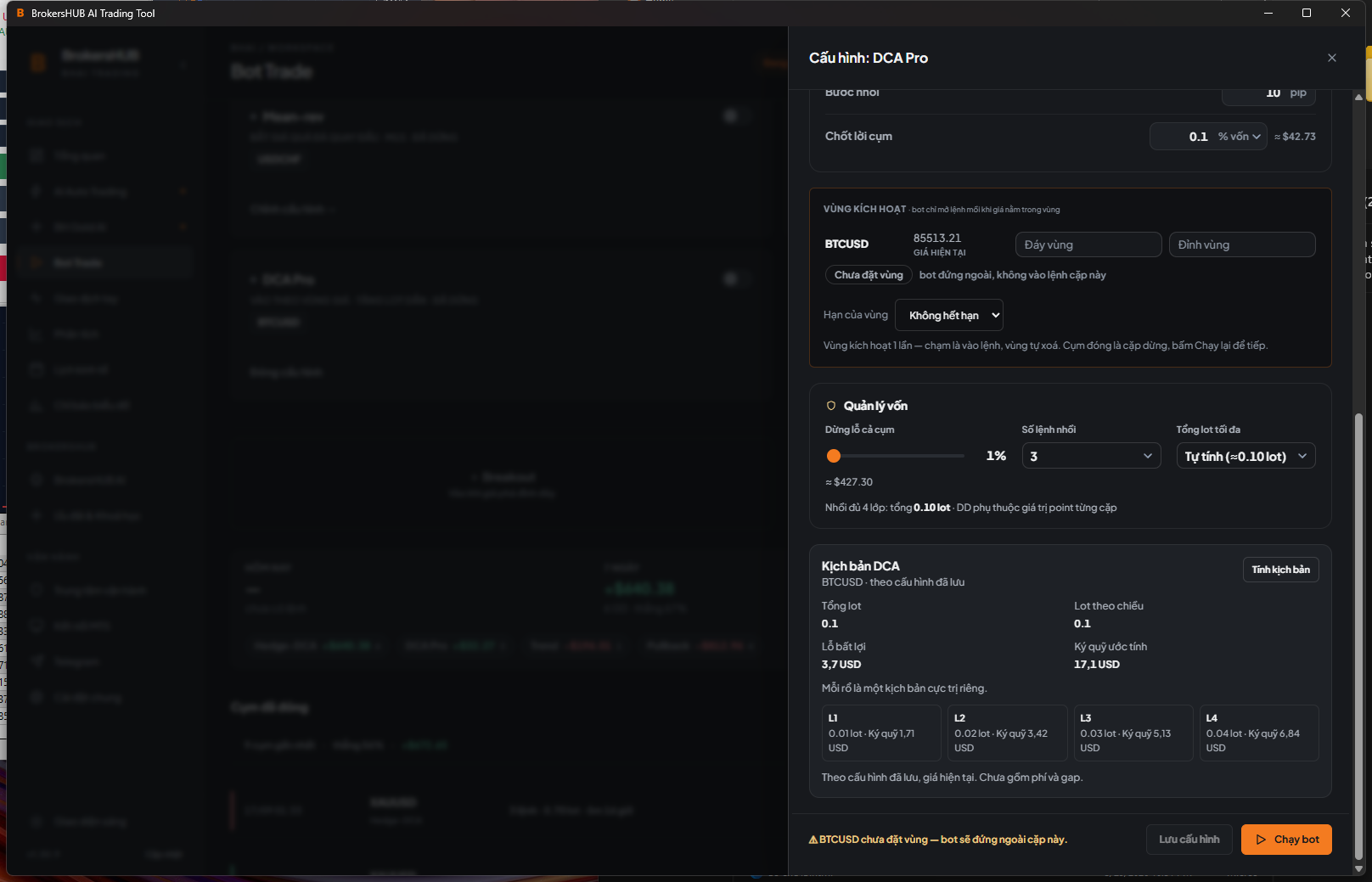
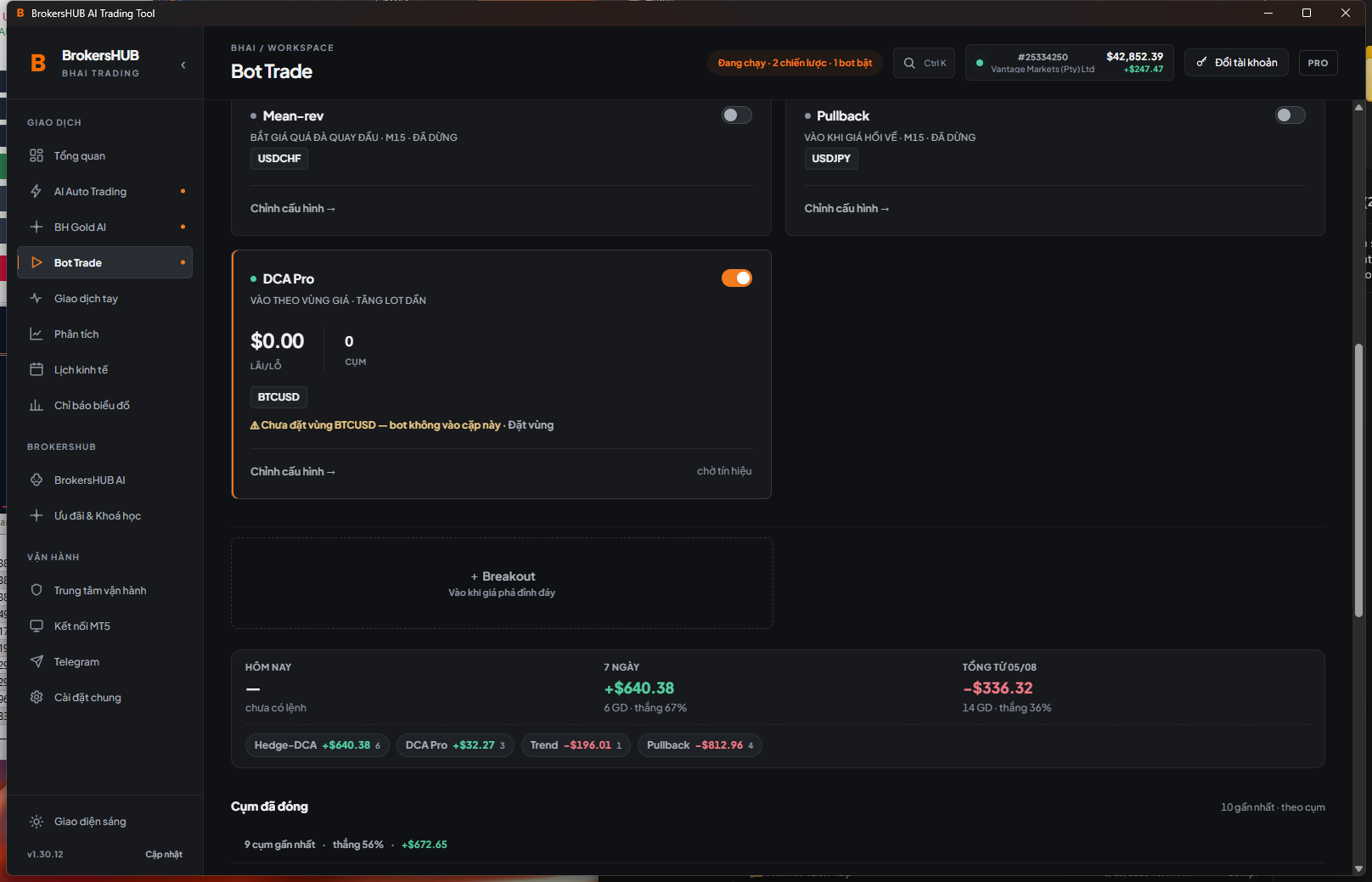
Each bot has its own configuration and state. DCA Pro operates only within the price zone and direction you set.
- Choose a bot. For DCA Pro, enter the zone low, zone high, and trading direction; without a zone, an enabled bot does not open a basket.
- In Hedge-DCA or DCA Pro, choose Save configuration, then Calculate scenario using the current price, spread, and lot step.
- Review lot size, margin, and adverse-scenario loss before choosing Run bot; if you changed settings, use Save & run.
- When a value shows a dash, treat it as unavailable data.
A DCA Pro zone is single-use and may expire; set a new zone before restarting after a basket closes. Scenarios do not include every fee/gap. A basket stop is software-based, not a guaranteed broker stop-loss.
Keep risk under control
Daily loss limits and Risk Control can block new orders at your saved level. Open positions are still managed.
- Open account protection, set the daily loss limit and the Risk Control caps you need, then save. A value of 0 disables that cap.
- Check when data was verified before changing a limit.
- When Risk Control rejects an action, read the reason and check MT5 before trying again.
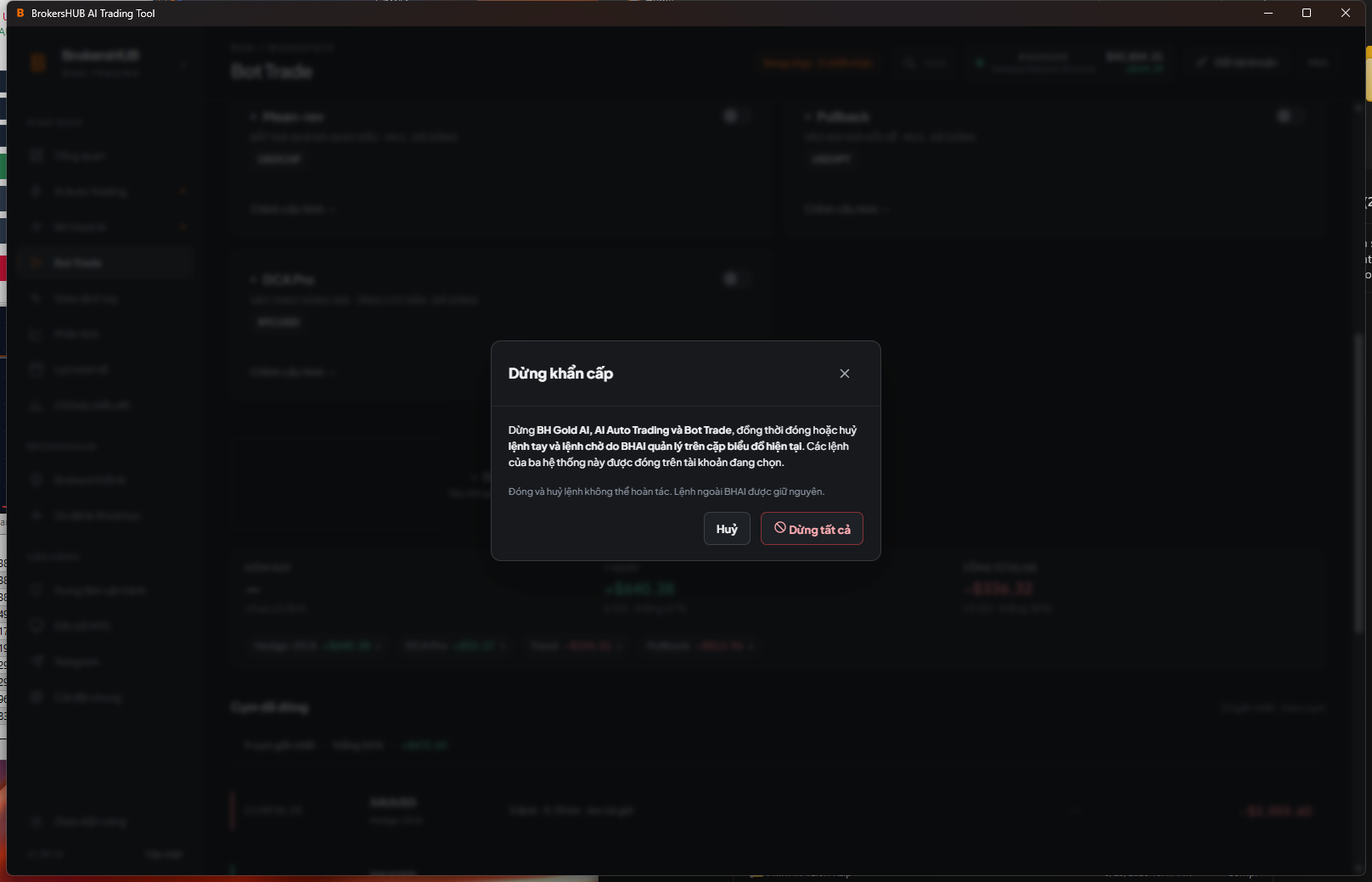
- Emergency stop disables Gold AI, AI Auto Trading, and Bot Trade, then closes their positions on the selected account. Read the scope in the confirmation dialog before proceeding.
BHAI manual positions and pending orders are closed/cancelled only on the current chart symbol; orders outside BHAI are left unchanged. Closing/cancelling cannot be undone. Review any step that MT5 has not confirmed.
Review journal and analysis
The trading journal lets you review fills, SL and TP changes, decisions, and notes for the selected account.
- Open Analysis, Trading journal to inspect each record.
- Load more history when needed and check each record’s sync state.
- Use notes to keep context for a position; a note does not create a new order.
- Read net P&L only when the record includes all related fees.
Waiting to sync does not mean the record is stored on the server. Check the record status.
AI, indicators and tools
Use the supporting tools to read charts and follow market events inside BHAI.
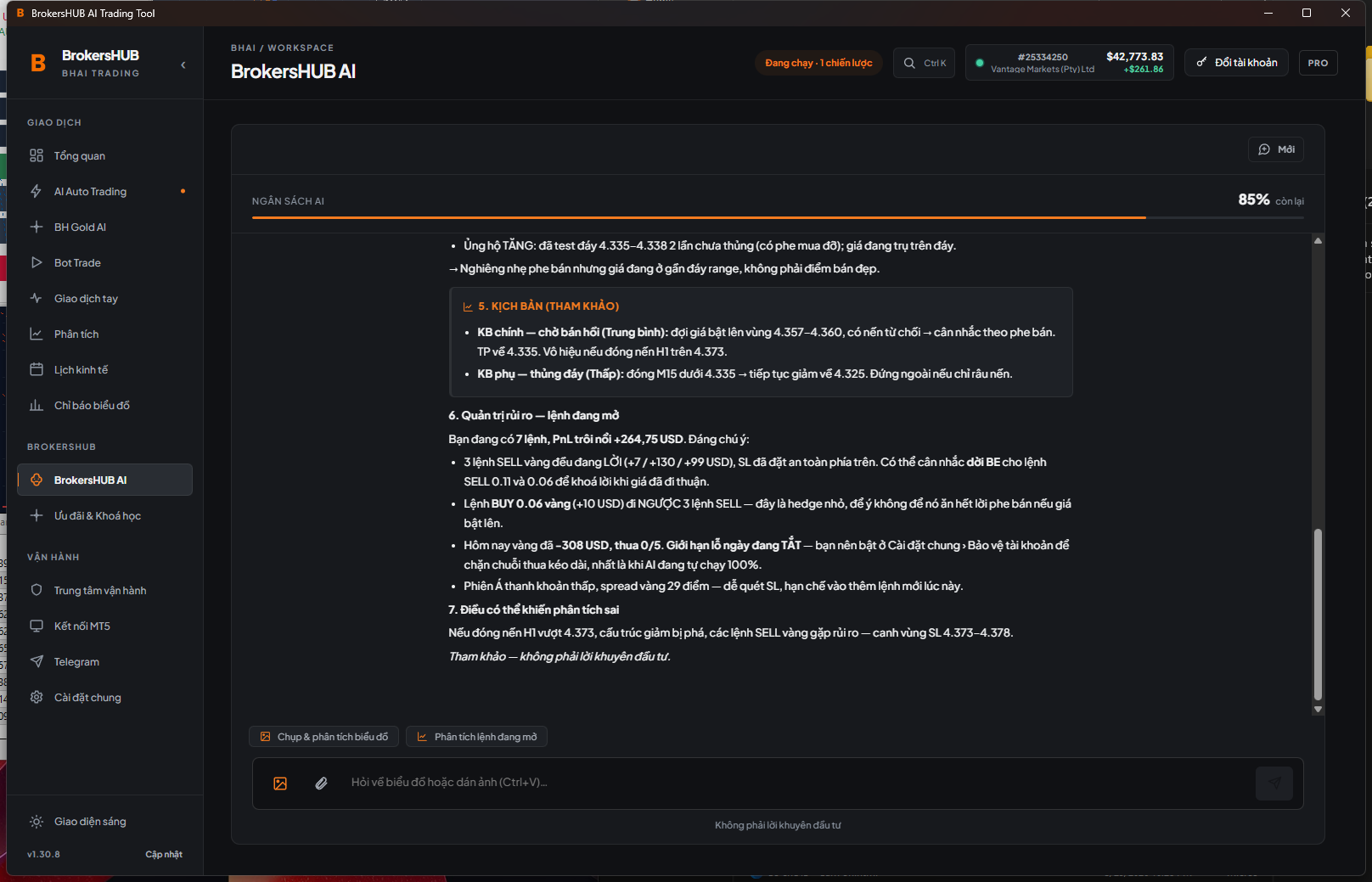
- BrokersHUB AI: choose the chart or image to send, enter your question, and review the analysis. Images are sent only when you choose them.
- Chart indicators: toggle tools on the connected MT5 chart. AI Signal displays suggestions; AI Auto Trading is the mode that places trades automatically.
- Economic calendar: filter events by impact and check the displayed time before planning.
- Telegram: open Telegram and follow the in-app linking steps with Pro. Check the connection status before relying on alerts or remote control.
- Offers & Courses: open the resource you need. For presets, review the settings and apply only to the intended account.
AI analysis and the economic calendar provide reference information. If Telegram disconnects, check BHAI and MT5 directly.
Settings and updates
Review licensing, account protection, and updates in the app.
- Settings: check your license and account protection levels before making changes.
- When the app reports a new release, open Updates and follow the installation steps.
- After updating, restart MT5 as instructed to load the new trading tool. Check its version and connection before trading.
- Remove saved profile deletes only the local profile. Signing out stops new entries for the session; saved profiles and licenses remain.
Closing the BHAI window is not signing out and does not stop the tool running in MT5.
Support and troubleshooting
Start with the MT5 connection, DLL permission, selected profile, and response status before asking for support.
- If MT5 is not connected, reopen MT5 with AI Trading and check Allow DLL imports and AutoTrading.
- If Pro is required, check the email, key, and selected account profile.
- If an order result is unclear, check MT5 before sending it again.
- Use Operations Center to review receipts or export anonymous diagnostics for support.
Free includes quick manual trades and basic displays on the MT5 chart. In-app trading controls and features marked Pro require a valid Pro key.
Quick answers
Common questions
Can I use more than one account?
You can save several profiles and keys for one email, but each session uses one MT5 account and one server.
Does the app save my MT5 password?
No. A Windows profile stores account details and an encrypted key so you can select it again quickly. BHAI does not switch the account signed in to MT5.
Which MT5 permissions do I need?
Enable Allow DLL imports and AutoTrading in Expert Advisors. You do not need a WebRequest URL for the app connection.
What is the difference between Free and Pro?
Free includes quick manual trades and basic displays on the MT5 chart. In-app trading, AI, and features marked Pro require a valid Pro key; check the label on the feature you want to use.
Why is the app waiting for confirmation?
The app is waiting for MT5 to respond. Do not tap again immediately. If it times out, check MT5 before continuing.
Does switching account close existing positions?
No. Unselected accounts cannot open new trades, including DCA additions and hedges; existing position management continues. Review existing positions in MT5 before switching profiles.
What does a dash in the data mean?
The value is unavailable or unverified. It does not mean zero.
What does Emergency stop handle?
It stops Gold AI, AI Auto Trading, and Bot Trade, then closes their positions on the selected account. BHAI manual positions and pending orders are closed or cancelled only on the current chart symbol. Orders outside BHAI remain unchanged; review each step’s result after confirming.
Start with Free
Install BHAI. Connect MT5.
Free includes quick manual trades and basic MT5 displays. Choose Pro for in-app trading and AI features marked Pro.